


Blog / Service

How to Use the MyChevrolet App with Google Assistant

A man holding

MyChevrolet Google Assistant Integration: Connect your Chevrolet vehicle to Google Assistant for seamless voice control of key vehicle functions including remote start, climate control, navigation, and entertainment. This integration transforms your driving experience by allowing hands-free operation while keeping you focused on the road, all managed through the MyChevrolet app with Google Built-in technology.

Ever wondered how your Chevrolet could become your ultimate digital companion? What if your car could understand and respond to your voice commands with unprecedented ease?

At Northcutt Chevrolet, we're thrilled to introduce you to the seamless integration of the MyChevrolet app with Google Assistant. This innovative connection transforms your driving experience by bringing smart technology directly into your vehicle's infotainment system.

The MyChevrolet Google Assistant integration offers more than just convenience—it's a revolutionary way to interact with your car. By connecting Chevrolet to Google, you'll unlock a world of personalized features that make every journey smarter and more enjoyable.

Our comprehensive guide will walk you through setting up the Chevrolet infotainment Google integration. You'll learn how to use every technological advantage of your modern Chevrolet vehicle. From voice commands to personalized settings, you'll see how technology can enhance your driving experience.

Get ready to transform the way you interact with your Chevrolet—one voice command at a time.

Still Stuck? Call Our Service Team at (800) 934-8168!

Setting Up Google Built-in Integration

Connecting your Chevrolet with Google's tech makes driving easier. The MyChevrolet app lets you control your car with voice commands. It also manages your vehicle smartly.

To start, follow a few easy steps. This unlocks the car's advanced features. You'll link your car, phone, and cloud services together.

Creating Required Accounts

To start with MyChevrolet app Google integration, you need two accounts:

  • Google Account (if you don't already have one)
  • General Motors (GM) Account

Go to the Chevrolet website or download the MyChevrolet app. You'll need a valid email and strong passwords for both accounts.

Initial System Configuration

Your car has a Setup Wizard to make things easier. It guides you through:

  • Connecting your smartphone
  • Accepting permissions
  • Setting up initial settings
  • Testing voice commands

Syncing Your Contacts

The last step is syncing your phone contacts with your car. This lets you make calls and send messages without touching your phone. Pick which contacts you want to access from your car for safety and ease.
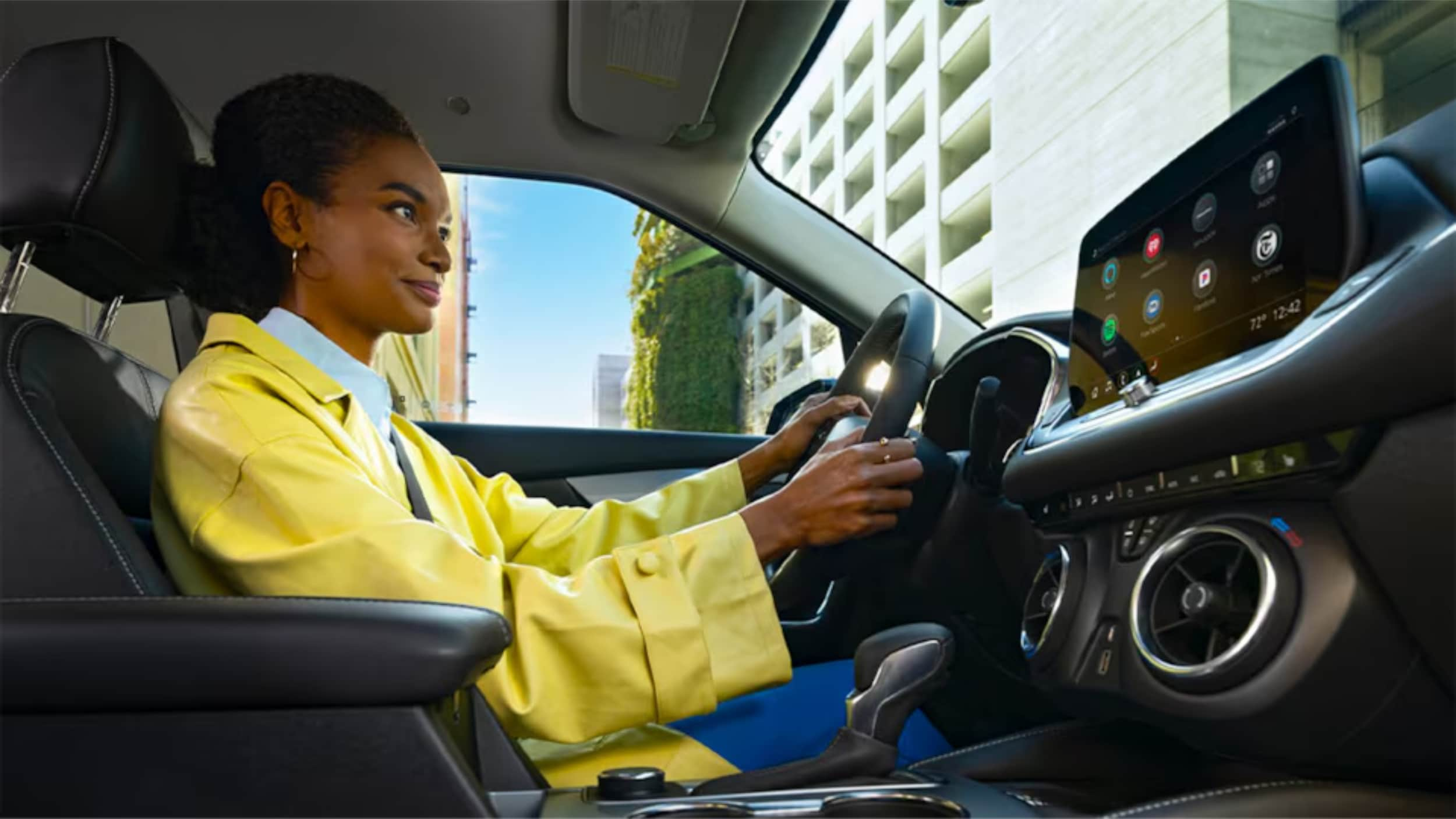
A Women is sitting on driving seat.

MyChevrolet Google Assistant Features and Commands

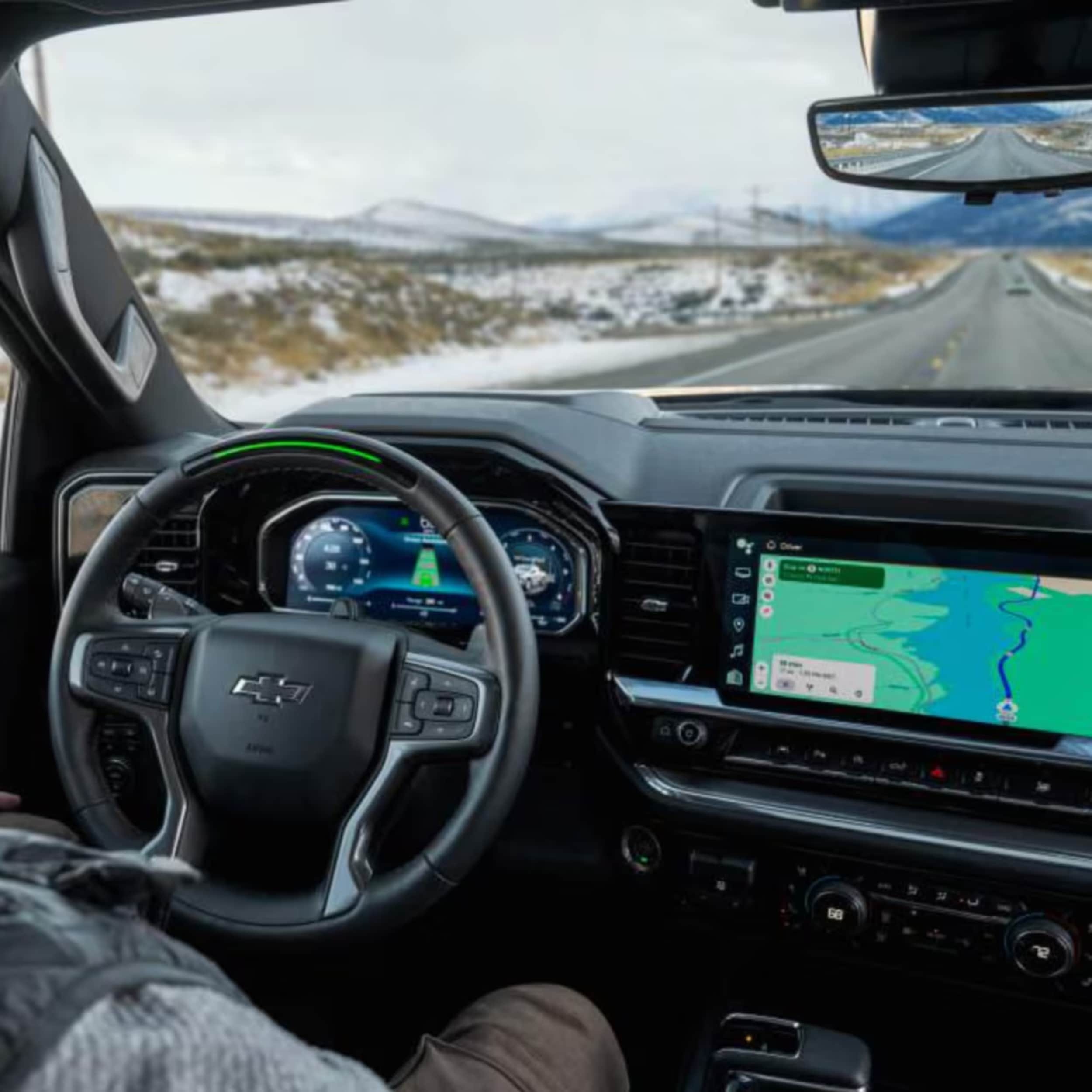
Your Chevrolet is now smarter than ever with advanced voice control. The Google Assistant integration makes driving easier. It lets you control many vehicle functions without using your hands.

Turning it on is easy. You can start by:

  • Saying "Hey Google"
  • Tapping the Google Assistant icon
  • Pressing the Push-To-Talk button on the steering wheel

The GM Google Assistant features offer a wide range of voice controls. These make driving more convenient and safer.

Command CategorySpecific Functions
Vehicle ControlsStart engine remotely, check fuel level, set climate temperature
CommunicationMake phone calls, send text messages, read incoming messages
NavigationGet directions, find nearby restaurants, check traffic conditions
EntertainmentControl music, change radio stations, adjust volume

With these advanced voice commands, you can keep your hands on the wheel. This lets you focus on the road while accessing important information easily.
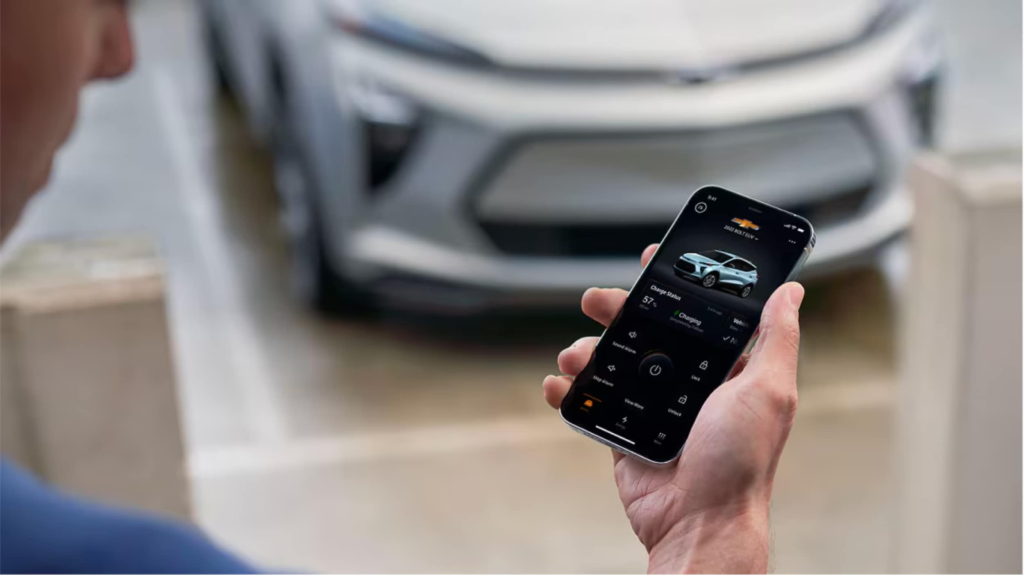
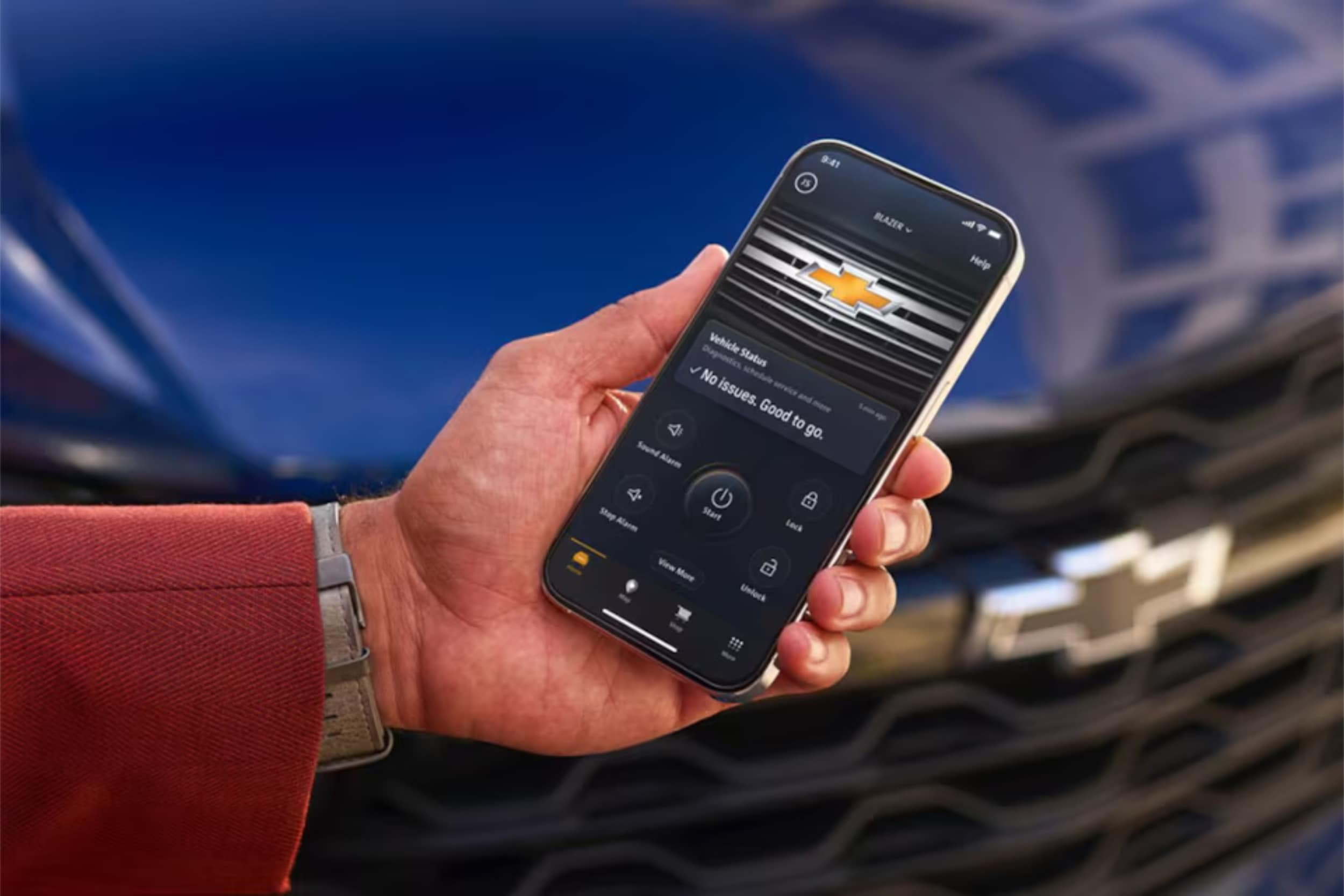
A Man is holding smartphone in his hand.

Personalizing Your Connected Vehicle Experience

Your Chevrolet infotainment system is more than just basic features. We know every driver wants a unique driving experience. The MyChevrolet Google Assistant lets you customize your car like never before.

Discover how to make your vehicle's digital world fit your style and needs.

Customizing App Layout and Preferences

With Google Home Chevy controls, personalizing your infotainment is easy. Our system offers lots of customization options:

  • Rearrange app icons for quick access
  • Add favorite apps to the App Tray
  • Download preferred applications
  • Save audio preferences

Managing Multiple Vehicle Profiles

The Chevrolet infotainment Google system is great for families or shared cars. It supports up to seven unique profiles, each with its own settings:

Profile FeatureCustomization Level
Driver Seat PositionFully Adjustable
Audio PreferencesIndividual Preset
Navigation HistorySeparate for Each User

Setting Up Voice Recognition Features

The MyChevrolet Google Assistant offers advanced voice recognition. Set up your system to understand your voice and commands with these steps:

  • Access voice settings in the main menu
  • Complete initial voice training
  • Calibrate microphone sensitivity
  • Practice common commands

Personalizing these features will make your driving experience seamless and tailored just for you.

Conclusion

The MyChevrolet app with Google integration changes how you use your car. You can now control many car functions without using your hands. This makes driving easier and smarter.

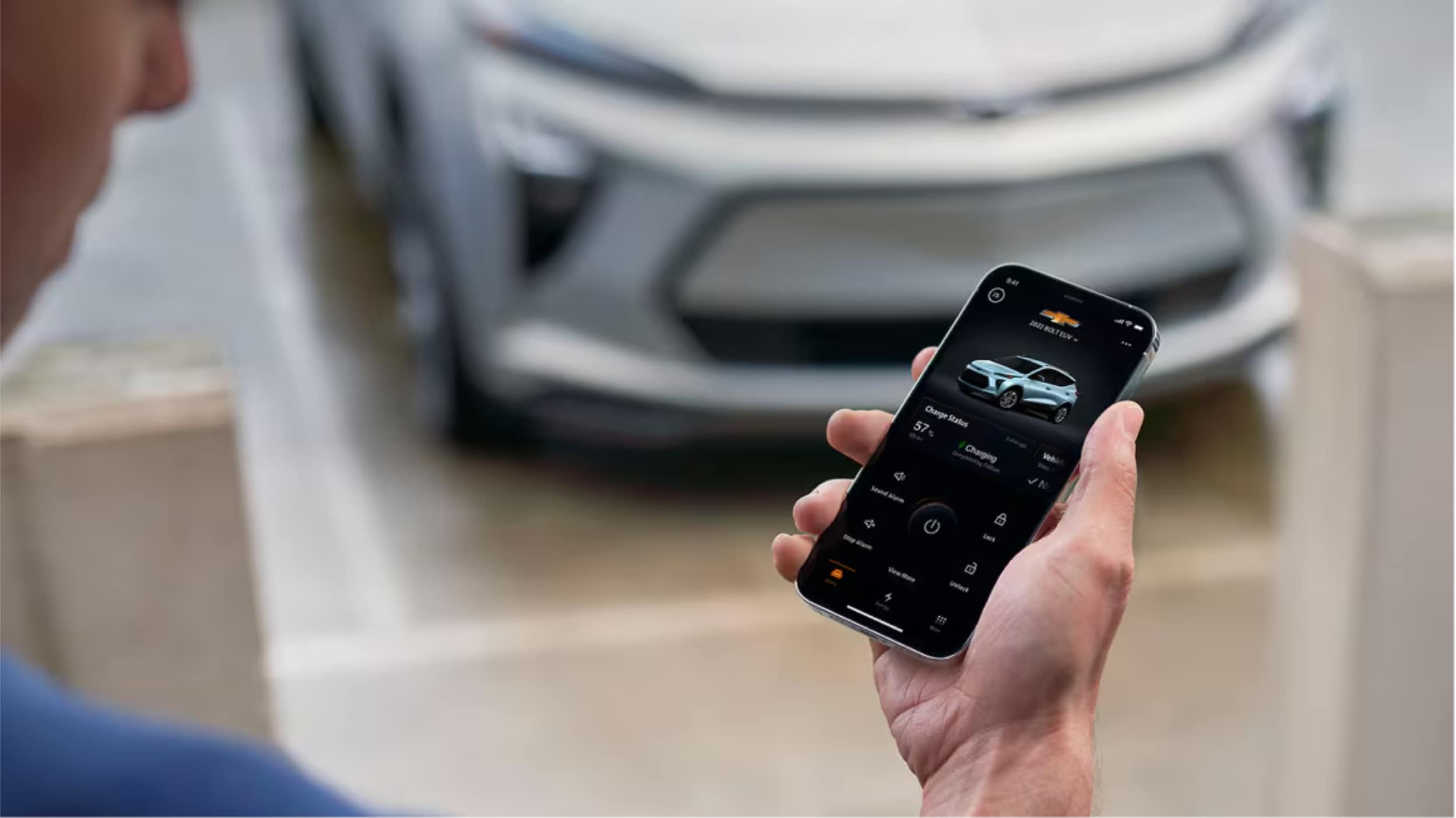
Connecting your Chevrolet to Google makes life easier. You can check your car's status, start the engine remotely, or adjust settings. The app lets you control your car from your phone.

Want to get the most out of your car? The team at Northcutt Chevrolet is here to help. Visit us at 3201 W Owen K Garriott Rd, Enid, OK 73703, or call (800) 934-8168. We'll show you how to use this cool technology.

Experience the future of driving with your Chevrolet. It's not just a car; it's a smart, connected partner for every trip.

Still Stuck? Call Our Service Team at (800) 934-8168!

FAQ

What voice commands can I use with my Chevrolet?

You can use many voice commands with your Chevrolet. For example, you can adjust the climate, make calls, get directions, start your car remotely, and check your car's status. Google Assistant makes controlling your car's functions hands-free, making driving safer and more convenient.

Can I use Google Assistant to start my Chevrolet remotely?

Yes, you can start your car remotely with the MyChevrolet app and Google Assistant. This lets you warm up or cool down your car before you get in. It adds comfort and convenience to your daily routine.

Is the Google Assistant integration compatible with all Chevrolet models?

Compatibility depends on your Chevrolet model and year. Most newer models with the latest infotainment systems work with Google Built-in. Check your vehicle's specs or talk to a Chevrolet dealer to confirm if it's compatible.

Can I sync my contacts with the Chevrolet system?

Yes, you can sync your contacts during the initial setup. This makes hands-free calling and communication easier while driving. The integration makes managing contacts through your car's system seamless.

How secure is the Google Assistant integration in my Chevrolet?

Chevrolet and Google have strong security measures to protect your data. The system requires authentication and uses encrypted connections. This ensures your personal information stays private and secure.
Still Stuck? Call Our Service Team at (800) 934-8168!

Posted in:

Related Posts

Car interior showing a black steering wheel with a gold Chevy logo, digital gauge cluster, and large infotainment touchscreen.

Guide to Pairing Chevy MyLink With an Android Device

Android Auto on Chevy MyLink: Connecting Android Auto to your Chevrolet MyLink system requires a compatible Android device (6.0 or later), the Android Auto app, and either a USB connection or Bluetooth pairing. The process involves enabling Bluetooth on your phone, pairing it with your MyLink system, and following the setup prompts to enjoy hands-free calls, navigation, and music streaming while driving safely. more Are you tired of disconnected drives and tech frustrations? What if your Chevrolet MyLink could become your ultimate digital companion on the road? Connecting your Android device to your Chevy MyLink system makes driving better. It turns your car into a tech hub. Modern drivers want tech that keeps them connected, entertained, and safe. Whether you drive a Silverado, Equinox, or Traverse, our guide will help. You'll learn how to get Android Auto working on your MyLink system. You'll be able to make hands-free calls, stream music, and get directions without looking away from the road. At Northcutt Chevrolet, we believe tech should make driving better, not harder. Our easy steps will show you how to get Android Auto on your Chevy MyLink. This will make every drive more fun and connected. Ready to master your Chevrolet MyLink Android integration? Let's dive in and simplify your tech connection! Still Stuck? Call Our Service Team at (800) 934-8168! Setting Up Bluetooth Connection for Android Auto Connecting your Android phone to Chevy MyLink is easy. It lets you use Android Auto smoothly. This guide will show you how to connect your phone and set it up right. Before you start, make sure you have these things: An Android smartphone Your Chevy vehicle with MyLink system A stable Bluetooth connection Enabling Bluetooth on Your Android Device To start, turn on Bluetooth on your Android device. Here's how: Open your phone's Settings app Tap on the Bluetooth option Toggle the Bluetooth switch to ON Make sure your device is discoverable Pairing Your Phone with Chevy MyLink System Now, pair your device with MyLink: Start your Chevy vehicle and keep it in Park Press the Phone icon on the MyLink touchscreen Select "Add Phone" or "Pair Device" On your phone, pick your Chevy vehicle from the list Make sure the PIN code is the same on both screens Confirm pairing and accept the connection Troubleshooting Common Bluetooth Connection Issues For common problems, try these fixes: Issue Solution Phone not connecting Restart Bluetooth on both devices Inconsistent connection Delete existing pairing and reconnect System unresponsive Reset MyLink by holding Home and Fast Forward buttons If problems keep happening, call your local Chevy service center for help. How Do I Get Android Auto on My Chevy MyLink Getting Android Auto on your Chevy MyLink is simple. The compatibility depends on your car's model and year. Some cars connect wirelessly, while others need a USB cable. To install Android Auto on MyLink, follow these steps: Check if your car's system is compatible Make sure your phone has Android 6.0 or later Download the Android Auto app from Google Play Store Connect your phone to the car's USB port or via Bluetooth Upgrading MyLink for Android Auto usually means a software update. Check your car's settings menu to see if updates are available. These updates might add Android Auto support. For a smooth update, keep these tips in mind: Keep your phone's OS up to date Use an official USB cable for wired connections Make sure Bluetooth and Wi-Fi are on Restart both your phone and car's system if you have trouble If you still have problems, visit our dealership at 3201 W Owen K Garriott Rd in Enid, OK. Our experts can help you set up Android Auto with your Chevy MyLink system. Conclusion Connecting your Android to Chevy MyLink might seem hard at first. But our guide makes it easy. You now know how to use Bluetooth, pair your phone, and fix any issues. These tools make driving better by adding to your entertainment and communication. At Northcutt Chevrolet, we know tech can be scary. Our team is here to help you every step of the way. Chevy MyLink and Android Auto offer great features for today's drivers. They help with calls, music, and directions. Want to learn more? Come to our dealership at 3201 W Owen K Garriott Rd in Enid, Oklahoma. Or call us at (800) 934-8168. Our team can show you how to use these features. This way, you can enjoy safe, connected driving. Your journey to better in-car tech starts at Northcutt Chevrolet. We make complex tech simple and fun for driving. Still Stuck? Call Our Service Team at (800) 934-8168! FAQ Is Android Auto compatible with all Chevrolet MyLink systems? Android Auto works with some Chevrolet MyLink systems, but not all. Newer models usually support it, while older ones might need a software update. To check if your car supports Android Auto, visit Northcutt Chevrolet or look up your car's specs. Do I need a special cable to use Android Auto? For wired Android Auto, use a good USB cable, like the one with your phone. Some Chevys support wireless Android Auto, connecting via Bluetooth and Wi-Fi. The type of connection depends on your car's model and year. What should I do if Android Auto isn't working on my Chevy MyLink? First, make sure your phone and car's system are up to date. Ensure Bluetooth and Wi-Fi are on, and use the right USB cable. If it still doesn't work, restart your phone and car, or call Northcutt Chevrolet for help. Can I use Android Auto with any Android phone? Android Auto works with most Android phones from 2016 or later. But, older phones or those with low power might have trouble. Check your phone's specs to see if it's compatible with Android Auto. What features can I use with Android Auto? Android Auto lets you use Google Maps, make hands-free calls, send messages, stream music, and more. You can navigate, talk, and control music safely while driving, all through your car's screen. Still Stuck? Call Our Service Team at (800) 934-8168!

A Man is holding smartphone in his hand.

How to Set Up & Use the MyChevrolet Mobile App

MyChevrolet App: The MyChevrolet mobile app lets you remotely control your vehicle from anywhere, offering features like remote start, door lock/unlock, vehicle health monitoring, and maintenance scheduling. Setting up is quick with just four steps: downloading the app, creating an account, adding your vehicle, and enabling remote access services. This powerful tool transforms your ownership experience by keeping you connected to your Chevrolet at all times. more Ever wished you could start your car from home on a cold winter morning? Northcutt Chevrolet is here to show you how the MyChevrolet app makes this dream come true. It does so much more too. This app connects you to your car from anywhere. You can control important functions with just your phone. With certain cars, you can start the engine remotely. You can also lock and unlock your doors without keys. Check your fuel, EV range, and tire pressure easily. The MyChevrolet app changes how you own a car. It keeps you updated and in control. You'll wonder how you lived without it. This guide will help you every step of the way. We'll show you how to download the app, set up your account, and link your car. You'll learn about all the handy features it offers. Starting is quick and easy. We're here to help you enjoy all that your Chevrolet can do with this app. Still Stuck? Call Our Service Team at (800) 934-8168! How to Set Up My Chevy App Once you set up the Chevy app, you can control your car from your phone. It only takes a few minutes to learn how. The app connects you to your vehicle, no matter where you are. We've made setting up easy in four steps. Each step builds on the last to get you connected. Here's what you need to know to start using your Chevy app today. Step 1: Download the MyChevrolet App First, download the MyChevrolet mobile app to your phone. iPhone users should go to the Apple App Store. Android users should visit the Google Play store. Search for "MyChevrolet" to find the app. Make sure it's the right app by checking the publisher. The app icon has the Chevrolet bowtie logo. Tap the download or install button to start. After installing, check for updates. New versions add features and security fixes. Enable automatic updates in your phone's settings to stay current. Step 2: Create Your MyChevrolet Account Now, create your account or sign in if you have GM credentials. This step links your identity to your vehicle. Your account gives you secure access to remote features. Use the same email as when you bought or leased your vehicle. This email is key for the system to recognize you. If your email is different, you might need to update it with us first. New users will go through a multi-factor authentication process. This extra step adds security. You'll get a verification code via email or text that you'll need to enter. If you have an OnStar account or My GM Rewards, you can use those login details. The system recognizes your existing GM account. This makes the process faster for GM customers. Step 3: Add Your Chevrolet Vehicle With your account ready, add your Chevrolet to the app. You have two easy methods to choose from. Both work well, so pick what feels easier to you. The first method is to enter your vehicle identification number directly into the app. Your VIN is a unique 17-character code. You can find it on your dashboard, registration, or documents from Northcutt Chevrolet. The second method lets you search by selecting your vehicle's make, model, and year. The app will guide you through menus to find your vehicle. This option is good if you don't have your VIN handy. After entering your vehicle info, the app will verify it. You might need to confirm ownership by answering a security question. This step protects your vehicle from unauthorized access. Step 4: Enable Remote Access Services The final step activates the remote features of the app. Your vehicle needs to connect with the app. This connection lets you send commands from your phone to your car. Check your OnStar subscription status in the app settings. Different levels offer different features. Basic functions are available with all connected vehicles, while premium features need an active OnStar plan. Verify your vehicle connection by checking the vehicle status screen. You should see your odometer reading, fuel level, and more. If this data appears, your connection is good. Keep your app updated for the best connection. Updates improve connectivity and add new features. If you have trouble setting up, our team at Northcutt Chevrolet is here to help. Your Chevy app is now set up and ready to use. Explore the various features and commands available to you. The next section will show you how to use the most popular features of your connected vehicle system. Using Key Features of the MyChevrolet Mobile App After setting up your app, you'll find many useful tools. These tools help you stay connected to your vehicle anywhere. The app has three main tabs on your home screen. The My Vehicle tab lets you send remote commands and see quick info. The Controls tab has more settings and features you can customize. The Help Center tab helps with service scheduling, roadside assistance, and your digital owner's manual. Let's look at how to use these features. Remote Start and Vehicle Commands One of the app's best features is starting your engine from anywhere. This is great for warming up your car on cold mornings or cooling it down on hot afternoons. To use a remote command, just tap and hold the icon for about two seconds. This prevents accidental commands. The app might take a few seconds to complete your request. So, be patient while it talks to your vehicle. Here are the remote commands you can use: Remote Start/Stop: Start or stop your engine and set your preferred climate temperature Lock/Unlock Doors: Secure your vehicle or unlock it when you've forgotten your keys Vehicle Locator: Find your car in crowded parking lots or large parking garages Horn and Lights: Activate these features to help locate your vehicle quickly The most used commands are on the My Vehicle tab for easy access. More features and settings are in the Controls tab. There, you can adjust things to fit your driving style. Monitor Vehicle Health and Status The app keeps you updated on your vehicle's health with real-time info. Your My Vehicle tab shows important details at a glance. This works for a variety of models, from Chevy Silverado trucks to Chevy Traverse SUVs. You can see things like: Fuel Level: Check how much gas you have before planning a trip Tire Pressure: Monitor all four tires to ensure proper inflation Odometer Reading: Track your total mileage without getting in your vehicle Oil Life Percentage: Know when your next oil change is approaching Electric Vehicle Status: View charge level and estimated range for EV models This info helps you plan and fix issues before they get worse. You'll always know if you locked your doors or if you have enough fuel. Schedule Service and Maintenance Keeping up with maintenance is easy with the app's service tracking. The Help Center tab gives you reminders based on your vehicle's needs. You'll get notifications when service is due. Scheduling appointments is super easy. You can see your vehicle's maintenance schedule and book appointments through your phone. At Northcutt Chevrolet, we make scheduling service through the app simple. Our experts know your Chevrolet well. Using this feature ensures your vehicle gets the care it needs. Regular maintenance keeps your Chevrolet running smoothly for years. Access Owner Resources The app is your complete ownership companion. The Help Center tab gives you instant access to important info and help. Your digital owner's manual is always there, so you can look up features or troubleshooting steps without a physical book. Other resources include: OnStar Contact: Reach OnStar advisors for navigation help, emergency services, or vehicle questions Roadside Assistance: Request help for flat tires, dead batteries, or other roadside emergencies How-To Videos: Watch tutorials about your vehicle's features and functions Customer Support: Get answers to app-related questions or technical issues Having these resources in one place means you're never without help. Whether it's a dashboard warning light or emergency assistance, the app connects you to the help you need right away. Conclusion The MyChevrolet app lets you control your car from anywhere. You can start your car, check its status, and keep up with maintenance. It changes how you interact with your Chevrolet. Setting up the app is quick and easy. You'll get instant access to features that make owning a car better. You'll feel secure knowing about your car's health and where it is. We know tech can be tough to handle. Our team at Northcutt Chevrolet is here to help. We can assist with setup or teach you about app features. Call us at 800-997-0790 to talk to our team. They can answer your questions and show you how to use features. Visit us at 3201 W Owen K Garriott Rd, Enid, OK 73703 for a hands-on demo. We're committed to making sure you enjoy all your Chevrolet's connected features. Stop by or call us. We're eager to improve your car ownership and smart technology use. Still Stuck? Call Our Service Team at (800) 934-8168! FAQ Do I need an OnStar subscription to use the MyChevrolet mobile app? You can download the MyChevy app without an OnStar subscription. You'll see basic vehicle information and owner resources. But, for remote start and other connected features, you need an active OnStar subscription. Check your current plan or contact Northcutt Chevrolet to find the right one for you. How do I remotely start my Chevrolet using the Chevy app? To start your vehicle remotely, open the app and find the Remote Start button. Hold the button for two seconds to start your car. You can also set the temperature before starting. This feature is great for cold mornings or hot days in Enid, Oklahoma. Where can I find my vehicle's owner's manual in the MyChevrolet app? Your digital owner's manual is in the MyChevrolet app. Go to the Owner Resources section to find it. You can search topics, bookmark sections, and access all the information from the printed manual. It's handy for quick reference on the road. Does the Chevy car app work with all Chevrolet models? The MyChevrolet app works with most recent Chevrolet models. It includes popular vehicles like the Chevy Silverado and Chevy Traverse. The features available may vary based on your vehicle's model year and equipment. Contact us at Northcutt Chevrolet at 800-997-0790 to check your vehicle's capabilities. Can I control multiple Chevrolet vehicles through one MyChevrolet app account? Yes, you can manage multiple Chevrolet vehicles in one MyChevrolet app account. Add vehicles by VIN or search by make and model. You can easily switch between vehicles to access their information and controls. This is convenient for families or business owners with multiple vehicles. Each vehicle must be registered to your account with the right documentation. Still Stuck? Call Our Service Team at (800) 934-8168!

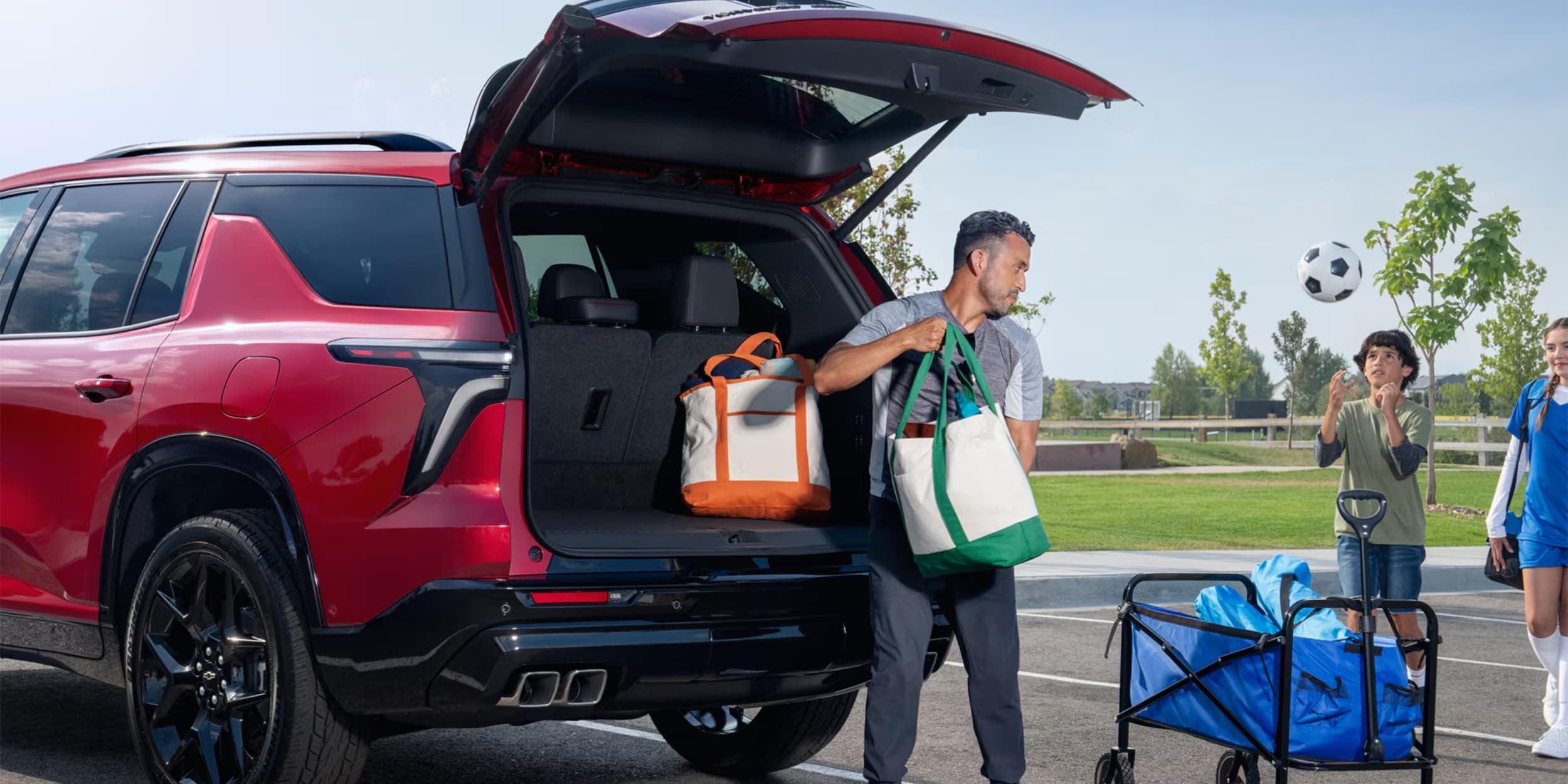
A Man is taking out the goods from his red car.

How to Program and Operate Your Chevy Power Liftgate

Ever wondered how to make your Chevy's power liftgate work just the way you want it? The AutoSense Power Liftgate in Chevy models like the Traverse is a game-changer. It's not just about convenience; it's about tailoring your vehicle to fit your lifestyle. more This hands-free feature recognizes you as you approach, opening without the need to fumble for keys. Plus, you can program the height to suit your needs. Whether you're tall, short, or somewhere in between, your Chevy's liftgate can adapt to you. Ready to learn how to program and operate your Chevy power liftgate? Let's dive in and unlock the full potential of this smart feature. You'll soon be a pro at Chevy liftgate programming and operation, making your daily routines smoother than ever. Call Our Service Department at (800) 934-8168 Understanding Your Chevy's AutoSense Power Liftgate System Chevy's AutoSense Power Liftgate system is a modern feature that makes life easier. It's found in vehicles like the Traverse. This system uses smart tech and easy design to help you out. Key Components and Features The AutoSense Power Liftgate has a sensor that opens the liftgate when you're near. It's part of a package with features like a Rear Camera Mirror and Advanced Security Package. Height Programming Capabilities The Chevy power liftgate lets you set the opening height. This way, it won't hit low ceilings in garages. It's easy to follow the instructions and adjust to your needs. Safety Features and Sensors Safety is key in the AutoSense Power Liftgate. It has sensors to avoid accidentally hitting objects or people. You can also control the liftgate from a distance with the remote control. This adds safety and convenience. Feature Description AutoSense Power Liftgate Hands-free operation with programmable height Rear Camera Mirror Enhanced visibility for safer reversing Advanced Security Package Added protection for your vehicle The AutoSense Power Liftgate is just one of many features that make Chevy vehicles special. With settings for two drivers and USB ports for charging, Chevy offers a truly personalized driving experience. How to Program and Operate Chevy Power Liftgate Chevy's Power Liftgate makes life easier for everyone. It can be set to different heights and works without your hands. Let's see how to use it to its fullest. Setting Your Preferred Liftgate Height To set your ideal liftgate height: Open the liftgate to your desired position Press and hold the button on the liftgate until you hear a beep The liftgate will now open to this height when activated This feature makes getting in and out easier. It also stops the liftgate from hitting low ceilings. Using the Key Fob Controls Follow these instructions to use your key fob to control the liftgate: Double-press the liftgate button to open Single-press to close Press and hold to stop the liftgate mid-motion Hands-Free Operation Methods For hands-free use, kick the rear bumper. Make sure you have your key fob with you. This AutoSense tech lets you in easily, without keys or sensors. Troubleshooting Common Issues If your Chevy liftgate has problems, try these fixes: Issue Solution Liftgate won't open Check key fob battery Sensors not responding Clean rear bumper sensors Liftgate stops midway Remove any obstructions Height programming fails Consult your manual or contact your dealer If problems persist, get professional help. Chevy will pay up to $1,500 for accessibility gear on certain vehicles. This can help with repairs or upgrades. Conclusion The Chevy Power Liftgate system makes your daily life easier. It's found in models like the Traverse, making loading and unloading simple. You can set the height, open it hands-free, and enjoy built-in safety features. Programmable settings let you customize the liftgate to fit your needs. The hands-free option is great when you're carrying a lot. Plus, safety sensors protect you and your cargo. Need help with your Chevy power liftgate? Northcutt Chevrolet in Enid, Oklahoma is here to help. We can show you how to use it best. Visit our dealership to learn more about the innovative features in your Chevy. Your Chevy power liftgate is more than a cool feature. It's a practical tool to simplify your life. Next time you're packing for a trip or shopping, let your Chevy handle it! Call Our Service Department at (800) 934-8168 FAQ Where is the power liftgate switch off button in a Chevy Equinox? In the Chevy Equinox, you can find the power liftgate switch off button on the driver's overhead console. To turn off the power liftgate functionality, press this button until the indicator light illuminates. This disables the automatic operation while still allowing manual use of the liftgate. To reactivate, simply press the button again until the indicator turns off. How do I turn the power liftgate switch off in my Chevy Traverse? To turn off the power liftgate in your Chevy Traverse, locate the overhead console above the driver's seat. Press the power liftgate button, which shows a car with an open trunk, until the indicator light comes on. This deactivates the automatic function while allowing manual operation. This feature is particularly useful during maintenance or when you need to conserve battery power. Is there a way to switch the power liftgate off on my Tahoe when not in use? Yes, you can turn off the power liftgate on your Tahoe by pressing the liftgate control button located on the overhead console or on the driver's door panel, depending on your model year. When the indicator light is on, the power function is disabled. This is recommended when towing or using a bike rack to prevent accidental opening. You can still operate the liftgate manually when the power function is turned off. How do I set my Chevy liftgate to max 3/4 off its full height? To set your Chevy liftgate to approximately 3/4 of its maximum height, first open the liftgate manually to about 75% of its full extension (max 3/4 off). Once positioned at your desired reduced height, press and hold the liftgate button on the driver's door or the button on the liftgate itself (depending on your model) until you hear a beep. This programs the new maximum height, which is helpful for low garage ceilings or when you need limited clearance. How do I use the hands-free feature on my Chevy Power Liftgate? To use the hands-free feature on your Chevy Power Liftgate, make sure your key fob is within 3 feet of the rear bumper. Perform a straight kicking motion under the center of the rear bumper, then step back. The hazard lights will flash and the liftgate will open automatically. This feature can be temporarily disabled using the power liftgate switch off button in the overhead console if needed. Call Our Service Department at (800) 934-8168